In this article 10 sections
- What preflight actually checks
- The resolution trap: check at placed size
- The checklist: machine checks and human checks
- The "vector" file that is not vector
- What a passed check really means
- Decoration-specific review
- Where AI helps, and where it quietly hurts
- Three places AI makes things worse
- Is the human review worth the time?
- Setting up the two-stage gate this week
A customer’s logo arrives as a small JPG copied off their website. It gets placed on a large banner, and nobody notices until the print comes off the machine soft and blocky. Another file is technically perfect, but the company name in all 48 left-chest logos on a polo order is misspelled. Both jobs end in a remake, and standard preflight would have caught only one of them.
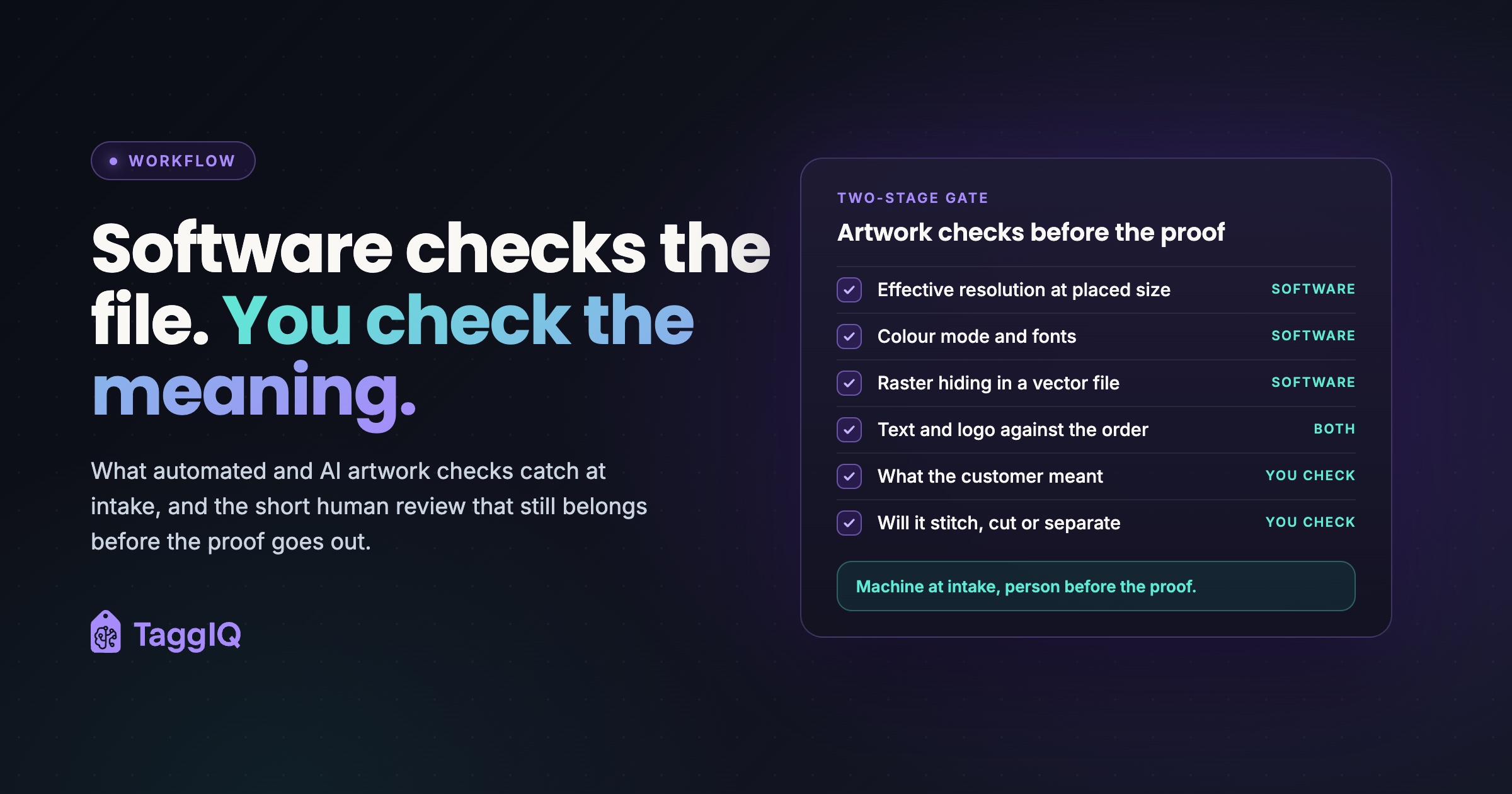
The short answer: automated artwork checks are very good at technical faults. AI tools can also flag a mismatch against the order, such as a name that differs from the personalization list, but only a person can confirm what the customer meant. Let software check resolution, color mode, fonts, bleed and line weights the moment a file arrives. Then have a person spend a few minutes on the questions only a person can answer. Do that before the customer proof goes out, not after.
What preflight actually checks
“Preflight” is the print trade’s word for this. One open graphic communications textbook defines it as the task of checking a computer graphic document in preparation for the manufacturing process. It notes that most preflight software looks at file format, color management, fonts, spot color handling, page structure, thin lines, black overprint and trapping.
Those technical checks answer one question: is this file valid for the output? A tool that can also read the text in the art or compare images adds a second: does this match the order data? Neither can answer a third: is this what the customer meant?
Good practice is to run each file against a saved profile rather than one universal checklist. A profile is a named set of checks matched to the output process, so a business card, a banner and a screen-print film are each judged by their own rules.
The resolution trap: check at placed size
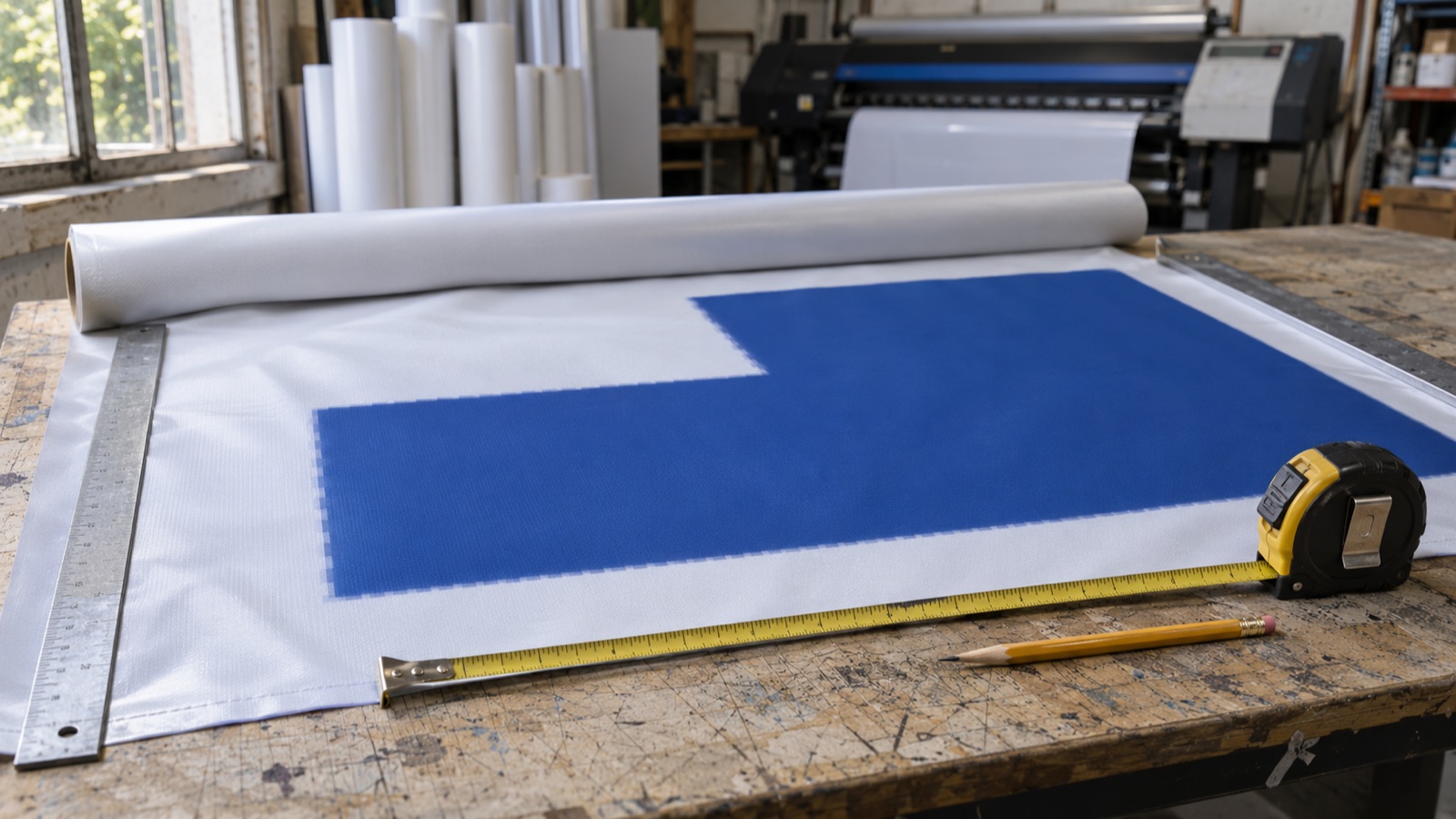
Resolution is easy to misread because a file’s stated dpi tells you very little. What matters is effective resolution: the pixels available per inch at the size the image will actually be printed.
Worked example
A customer sends a logo that is 1,200 x 1,200 pixels. Placed 4 inches wide on a flyer, that gives 1,200 ÷ 4 = 300 pixels per inch. Placed 24 inches wide on a banner, the same file gives 1,200 ÷ 24 = 50 pixels per inch. Whether either figure is acceptable depends on the viewing distance and the thresholds you set and test for each process.
A resolution check only tells you the file met the number in the profile you selected, so the same file can pass one profile and fail another. If you use one threshold for every job type, you get two problems. Large-format work throws false warnings that staff learn to ignore, and marginal small-format files slip through.
The checklist: machine checks and human checks
Here is the split across print, sign, embroidery and screen. The middle column is what software should check at intake, in seconds. The right column is what a person still has to judge.
| Area | Machine can check | A person must judge |
|---|---|---|
| Resolution | Effective ppi at the placed size against the profile threshold | Whether a marginal file is acceptable at the real viewing distance |
| Vector or raster | Whether a logo PDF, EPS or AI file going to cut, screen or embroidery contains an embedded raster image | Whether a trace or redraw is clean enough to cut, separate or digitize |
| Color | RGB vs CMYK vs spot, named spot colors present, a spot color that differs from the one on the order | Whether it is the right Pantone and matches the brand’s intent |
| Fonts and text | Fonts embedded or converted to outlines; AI text reading can compare wording with the order | Whether names, spelling, phone numbers and dates are what the customer intends |
| Logo version | AI image comparison against the customer’s stored approved logo | Whether a difference is an error or a genuine rebrand |
| Size and layout | Page or artboard size, bleed, safe area | Whether placement and scale make sense on the actual product |
| Lines and effects | Hairlines, minimum stroke weight, overprint, transparency | Whether fine detail will survive the decoration method |
| Decoration fit | Little, beyond basic measurements | Stitch feasibility, screen color count, weeding difficulty |
The “vector” file that is not vector
A PDF or EPS can simply wrap a JPG. The extension says vector, but the contents are pixels. As the vector artwork glossary explains, true vector art is built from paths rather than pixels, which is why it scales without blurring. Software can detect an embedded raster image, which makes this one of the most valuable automated checks for sign, screen and embroidery work.
What a passed check really means
A file that passes preflight is technically valid. That does not make it print-ready. The wrong logo version, an old phone number, a misspelled surname and a near-miss Pantone color all pass standard technical preflight. AI comparison can flag some of them, but only against the order data you give it. That is why the proof step matters. For the approval side, see where email approvals break down.
Decoration-specific review
Print preflight is built for ink on paper. A file can pass it cleanly and still be wrong for the machine it is going to.
Embroidery. Here the review is about whether the design can be digitized, not about print resolution. Check lettering height, fine detail, thread color count, gradients and the final stitched size on the garment. Ask your digitizer for their minimums and write them into your embroidery profile.
Worked example
An embroidery profile might start with illustrative minimums: lettering no smaller than 1/4 inch tall, no line narrower than the smallest stitch your digitizer will run, and a cap on thread colors per design. A left-chest logo with a 1/8 inch tagline would be flagged for review. The options are to enlarge the tagline, drop it, or ask the digitizer whether it can be done. These figures are starting points only. Confirm every number with your digitizer.
Screen printing. The questions are color count and separations, halftone needs, minimum line weight and whether the art needs redrawing. Software can count the colors in a vector file. It cannot tell you whether a three-color job could be done in two without the customer noticing.
Sign and cut vinyl. Cutting needs clean vector paths. A raster logo usually goes back to the customer or to an artist for redrawing. Someone also has to judge whether a tiny serif will survive weeding.
Where AI helps, and where it quietly hurts
AI-based tools can scan every incoming file and flag the obvious faults, which frees skilled art staff for judgment calls. A tool with text recognition can compare the wording in the art with the order, such as the names on a personalization list or the phone number on the quote. Image comparison against the customer’s last approved logo can flag an old version or an unapproved redraw. On DTF and DTG jobs, detection can catch a white box behind a logo that will show on a dark garment.
Treat each of these as a prompt for a person to look, never as a verdict. If the order itself has the typo, or the customer has genuinely rebranded, the check will pass or fail for the wrong reason. Before you rely on any automated or AI check, run 10 to 20 past files that caused remakes through it and note which faults it catches and which it misses.
Three places AI makes things worse
AI upscaling. An upscaler produces a bigger, smoother image, but not the original artwork. It can soften or invent detail, and the problem usually shows first in lettering. Use upscaled output as a proof aid, never as a substitute for vector art.
Auto-tracing. Tracing a raster logo into vector is a common starting point. Experienced artists still clean the paths by hand before cutting, separating or digitizing. A trace that looks fine on screen can be full of tiny nodes and wobbly curves.
Silent fixups. Many preflight tools can fix files as well as flag them, for example by converting color, upsampling images or outlining fonts. If a fix happens after the customer has approved the proof, what prints no longer matches what was signed off. Any automatic fix should happen before the proof is made. If it happens later, it should create a new version that goes back for proofing.
The approved-version rule
Production should only ever pick up the exact file version the customer approved. If anything changed that file after approval, whether a person or a tool, it needs a new proof.
Is the human review worth the time?
Run your own numbers, but here is the shape of the calculation.
Worked example
A shop runs about 25 jobs a week. Around 10 are repeat orders using unchanged, already-approved artwork, so they get the automated checks only. The other 15 get an 8-minute human review: 15 × 8 = 120 minutes, or 2 hours a week. At an art-staff labor cost of $30 an hour, that is $60 a week.
Now one remake: a 48-piece embroidered polo order with the company name misspelled in all 48 left-chest logos. Blanks at $12 each come to $576. About 1.5 hours of operator time at $30 an hour adds $45. Machine running costs already sit in overhead, so they are not added again. That makes $621, before rush shipping and before the cost of paying work pushed off the schedule.
Break-even: $621 ÷ $60 is about 10 weeks. The review pays for itself if it prevents one remake of that size roughly every 10 weeks. Suppose 1 in 50 new-artwork jobs has a content error that would otherwise reach production. At 60 new-artwork jobs a month, that is about one a month. Not every error becomes a full remake, but only one every 10 weeks or so needs to. These figures are illustrative. Use your own blank costs, labor rates and error rate.
The bigger saving is often timing. A fault caught before the proof goes out costs a two-line email to the customer. The same fault caught after approval means a second proof cycle, a delayed in-hands date and sometimes a remake.
Setting up the two-stage gate this week
You do not need new software to start. You need a written order of operations.
- Write one profile per process. Set separate thresholds for close-viewed print, large format, screen, embroidery and vinyl, even if this starts as a one-page note.
- Run machine checks at intake. Check effective resolution at the placed size, color mode, fonts, bleed and whether “vector” files really are vector.
- Do the human review before the proof. On new or changed artwork, check spelling, logo version, color intent and decoration fit. A short written checklist, such as this artwork approval checklist, lets newer staff do this consistently.
- Ban silent fixes after approval. Any change creates a new version and a new proof.
- Release only the approved version. Production works from the file tied to the sign-off and nothing else.
TaggIQ does not preflight files for you. It handles the gate after the checks. Customers approve proofs from a shared link without logging in, and their comments are tied to specific versions. Version history includes side-by-side comparison, and production on the order stays blocked until every artwork is approved.
See artwork proofing See how TaggIQ tracks proof versions, records customer approvals and blocks production until all artworks are approved.
Frequently asked questions
Can I trust an AI tool to tell me a file is print-ready?
You can trust it to tell you whether a file is technically valid against the profile you set. Print-ready also means the right content, color and size for the decoration method, and that still needs a person. A pass is only as good as the thresholds behind it.
What resolution should I set as my threshold?
No single number suits every job, so set a threshold for each process and each typical viewing distance. Calibrate it by measuring effective resolution on past jobs that printed well and on jobs that came out soft, then set the line between them. Review it whenever staff start ignoring the warnings.
Should I send customers back their low-resolution logo or fix it in-house?
If the customer has original vector art, asking for it is the fastest option and keeps the brand correct. If they do not, a redraw by an artist is safer than an upscale or an unchecked auto-trace, especially for vinyl cutting, screen separations or digitizing. Consider quoting redraws as a separate line so the time is paid for.

Emma
Emma writes for TaggIQ about practical AI and automation for print, promo, sign and embroidery businesses: AI assistants and agents, quoting and follow-up workflows, customer experience and keeping people in charge of the decisions that matter.