In this article 10 sections
You have picked a new system and the old one is still running. Someone has exported a spreadsheet with every customer since the shop opened, and the plan is to “bring it all across”. Or the opposite: nobody wants to touch the old data, so the plan is to start fresh and hope nobody asks for last year’s artwork.
The short answer is to sort every type of data into one of three boxes before you move anything. Migrate what someone will act on inside your active window. Archive closed history in read-only files. Rebuild your price structures and workflows inside the new system. The rest of this article gives you the decision rule for each box, a checklist and a worked example.
Why “move everything” and “move nothing” both fail
Trying to import every historical record turns a few weeks of work into months. While the import drags on, you pay for two systems and staff type the same order into both.
Moving nothing fails more quietly. The first time a repeat customer rings for “the same polos as last March”, nobody can find the artwork, the size split or the price they paid. You either guess the price or spend half an hour digging.
The triage stops both. It also forces one decision people skip: who owns each type of data. Name one person per data type, and give them the job of deciding what goes in which box.
The three boxes and their decision rules
Box 1: Migrate
Rule: migrate a record if someone will need to act on it, in the new system, within your active window.
You set the active window. A common starting point is 24 months since last order, but pick what fits your repeat cycle.
Data that belongs here:
- Customers who ordered inside your active window, with their contacts
- Supplier details for suppliers you still buy from
- Open quotes that could still convert
- Open jobs that will not finish in the old system before cut-over
Clean before you import, not after. Merge duplicate customers, standardise company names (“ABC Ltd” and “A.B.C. Limited” become one record), and drop dormant contacts. Duplicates imported on day one clutter every search and report from the first week.
Decide which system is the master for customer records before any import. If the new system syncs customers with Xero or QuickBooks, choose either the sync or a one-off import. Using both routes can create duplicates. Check the integration’s matching rules and identifiers, then test the chosen route before the full load.
Then run a test import. Load 10 to 20 records, check them on screen, fix the column mapping, and only then run the full load.
Box 2: Archive
Rule: archive a record if you may need to look at it, but nobody needs to act on it.
This covers old quotes, finished jobs, old email threads and customers outside your active window. Export them to read-only files, such as CSV for lists and PDF for documents, and store them in one named folder with a short note explaining what is in it.
Check your accounting package before archiving financial history. If closed invoices and payments already sit in Xero or QuickBooks, your shop system does not need them re-imported. The accounting package is already your record.
The archive is a retention decision, not a dumping ground. Two official sources set the frame here, and you should read both against your own situation:
- GOV.UK explains which company and accounting records a limited company must keep, and for how long. Check the period that applies to you with your accountant before you delete anything financial.
- The ICO’s storage limitation guidance says personal data should not be kept longer than needed, that retention periods should be justified and documented, and that moving data offline does not remove the duty to protect it. The ICO notes the guidance is under review, so check the current version and your own obligations.
In practice, that means writing a one-page retention schedule for the archive. For each file, note what it holds, why you are keeping it, when you will review it and who decides. An archive of old customer contacts with no review date is a risk you have just copied to a new drive.
Box 3: Rebuild
Rule: rebuild anything that describes how you work rather than what happened.
Price lists, decoration charge matrices, quote templates, email wording and production workflows go here. The old structure was built around the old system’s limits. Copying it across carries those limits into the new one.
A decoration matrix is the clearest case. Your old system may hold embroidery prices as a flat list of 40 rows because it could not do tiers. If the new system handles quantity tiers, setup charges and decoration fees as separate parts of a quote line, rebuilding the matrix takes less time than forcing the old list in. It also gives you a natural moment to check the prices. Our guide to decoration pricing and the margins in setup and run charges is a useful companion for that review.
The triage table
Use this as the starting sort for a print, sign or apparel shop. Move a row if your shop works differently.
| Data type | Box | Decision rule |
|---|---|---|
| Active customers and contacts | Migrate | Ordered inside your active window; cleaned first |
| Customer agreed prices, terms and VAT details | Migrate | For active customers; rebuild as price levels if the new system handles them differently |
| Dormant customers | Archive | Outside the window; keep only with a retention reason |
| Supplier details | Migrate | Suppliers you still buy from |
| Supplier catalogues and prices | Rebuild | Reload from current supplier data, not old copies |
| Open quotes | Migrate | Could still convert; re-enter or import |
| Old quotes | Archive | Export to CSV or PDF |
| Open jobs | Migrate | Finish in the old system if possible; re-entered jobs carry deposits paid |
| Finished jobs | Archive | Export; pull repeat details for active customers |
| Closed invoices and payments | Archive (already in accounting package) | No re-import needed |
| Approved artwork and proofs | Migrate | For active customers, linked to the customer |
| Price lists and decoration matrices | Rebuild | Rebuild and review prices |
| Templates and workflows | Rebuild | Redesign around the new system |
For active repeat customers, the approved file, the final proof and the last price paid are the three things sales staff reach for. Keep them in organised file storage linked to the customer record, not buried in an archive folder. If artwork sign-off has been messy in the past, this look at artwork approvals over email covers why it goes wrong.
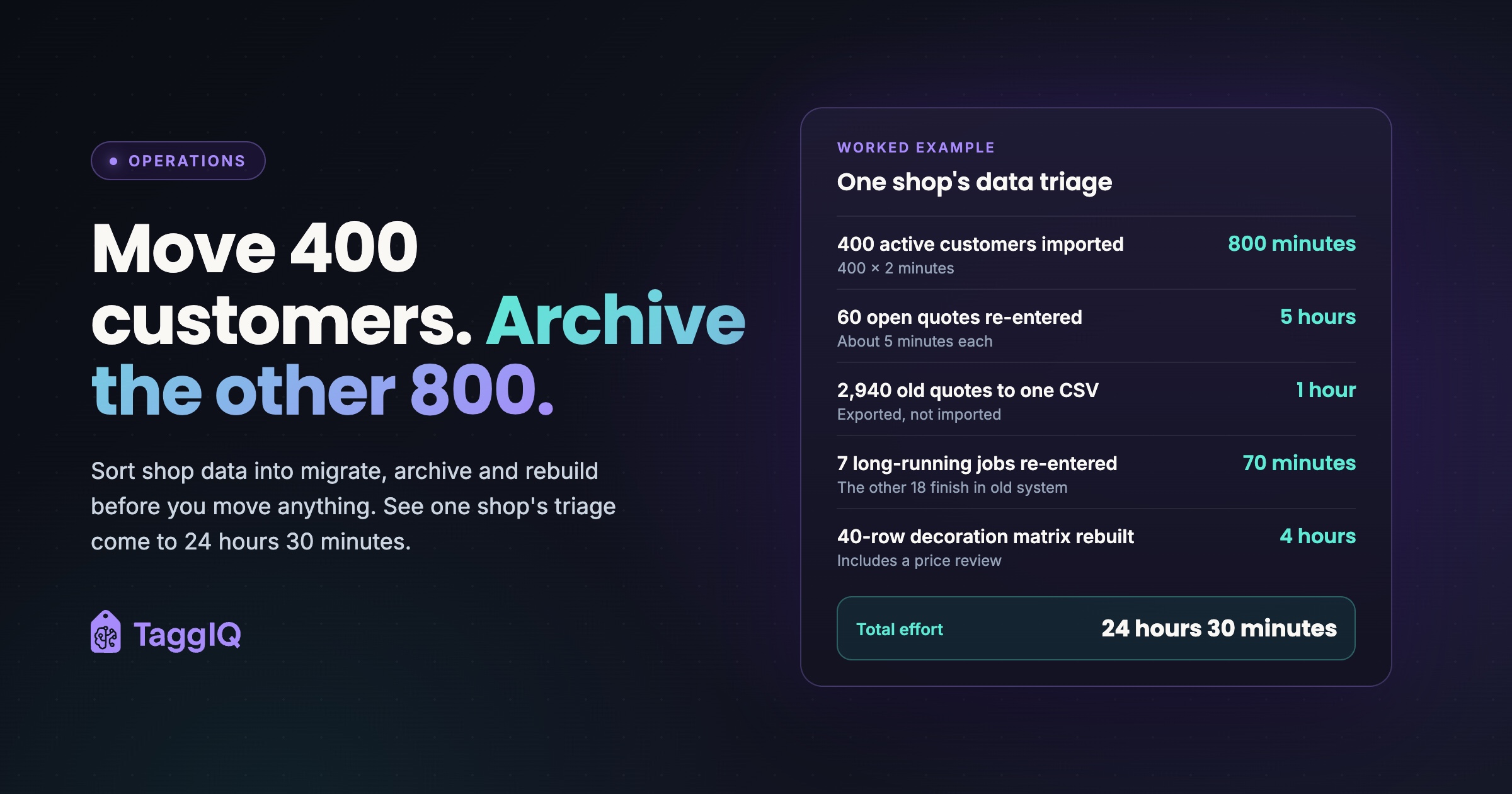
Worked example: one shop’s triage
Worked example
A decorated apparel and print shop has 1,200 customer records, 3,000 historical quotes and 25 jobs in production on cut-over day. It uses a 24-month active window. All figures are illustrative.
Customers. 400 customers ordered in the last 24 months. Cleaning and importing takes about 2 minutes per record. Migrating all 1,200 would take 40 hours (1,200 x 2 minutes), assuming the same cleaning effort for every record. Migrating the 400 active ones takes about 13 hours 20 minutes (400 x 2 minutes = 800 minutes). The other 800 go to the archive with a retention note. Saving: about 26 hours 40 minutes.
Quotes. 60 of the 3,000 quotes are still open. Re-entering each takes about 5 minutes, so 60 quotes take 5 hours. The other 2,940 are exported to one CSV file in about an hour.
Open jobs. Of the 25 jobs, 18 will ship within the week after cut-over, so they finish in the old system. The remaining 7 are re-entered at about 10 minutes each, which is 70 minutes.
Decoration matrix. The old 40-row embroidery list is rebuilt as tiered prices with separate setup charges. Allow half a day, 4 hours, including a price review.
Total. 13 hours 20 minutes + 5 hours + 1 hour + 70 minutes + 4 hours = 24 hours 30 minutes. Spread across two people, that fits inside two weeks alongside normal work.
Time yourself on ten records of each type and multiply.
Choose a cut-over date and work back
Pick the date the new system becomes the only place new work goes in. From then on, every new quote and order starts in the new system, with no exceptions.
Open jobs then follow a simple rule. If a job will ship within a short window after cut-over, finish it in the old system. If it will run longer, re-enter it by hand in the new one.
For every re-entered job, record any deposit or part-payment already taken against the accounting record, and check the balance due matches before cut-over. Otherwise the customer can be invoiced twice.
Before you cancel the old subscription, make sure every job left in the old system is completed or transferred, with deposits and balances reconciled. Then take a final readable export of everything in the archive box, including those jobs, and open a few files to check they work. Once the account closes, the data may go with it.
The data triage checklist
Work through this list in order.
- Name one owner for each data type in the triage table.
- Set your active window in months, based on your repeat cycle.
- Check which financial records already sit in your accounting package.
- Clean active customers: merge duplicates, standardise names, drop dormant contacts.
- Decide which system is the master for customers: accounting sync or import, not both routes.
- Time ten records of each type and estimate total hours.
- Choose a cut-over date and tell the team.
- Rebuild price lists, decoration matrices and templates in the new system.
- Test import 10 to 20 records, check them on screen and fix the column mapping.
- Import or re-enter active customers, suppliers, open quotes and long-running jobs, with deposits already paid.
- Link approved artwork and proofs to active repeat customers.
- Export the archive to CSV and PDF, and check the files open.
- Write the retention schedule for the archive, and check it against the GOV.UK and ICO guidance above with your adviser.
- Cancel the old system only after steps 12 and 13 are done and every job left in it is completed or transferred, with deposits and balances reconciled and final records exported.
If you are moving from spreadsheets rather than another system, the same boxes apply. From spreadsheets to a system covers the extra steps that switch involves.
Where the new system takes over
The triage gets easier when the new system already holds some of the data in a better place. TaggIQ syncs invoices, payments, credit notes, customers and suppliers both ways with Xero and QuickBooks, so closed financial history can stay in your accounting package. Quotes support tier pricing, decoration fees and setup charges, which is what a rebuilt decoration matrix needs. Artwork proofing keeps revision history on the job, with a Google Drive integration for your files. If you run a print shop, the print shop software overview shows how those parts fit together.
See TaggIQ features See which parts of your rebuild box TaggIQ already handles before you set your cut-over date.
Frequently asked questions
How long should my active window be?
Base it on your slowest regular repeat cycle. If your best customers reorder once a year, a 12-month window would miss some of them, so add a margin beyond that cycle.
Should I import old quotes so I can see win rates?
Only if you will actually run the report. A CSV export of old quotes can be analysed in a spreadsheet whenever you need it, without cluttering the new system with thousands of closed records.
What if a customer outside my window calls the day after cut-over?
Open the archive, find their last order and create the customer fresh in the new system with the details you need. This takes a few minutes and is the main reason the archive needs to be well named and easy to search.

Dave
Dave writes for TaggIQ about running a profitable print, promo, sign and embroidery business: costing and estimating, margins, production flow, order workflows, pricing decisions and keeping customers coming back.