In this article 8 sections
You write the newsletter on a Sunday night, send it to everyone who has ever ordered, and hear nothing back. The church that buys banners once a year got the same email as the contractor who orders shirts every month, and neither of them found their own work in it.
The short answer for marketing without a marketing team: send fewer messages to smaller groups. Pull three lists from your order history and send each customer on them one short note that quarter about their last job. Have AI help with the drafts, and approve every one yourself before it goes out.
Why the newsletter gets ignored
A general newsletter is about your shop. A message people answer is about their next job. “New colors in stock” asks the reader to work out whether it matters to them. “Your 500 business cards from March are probably running low” has already done that work for them.
Start with the order history you already have
For each customer you need five things: contact name, what they ordered, when, how many, and what it was for (a uniform refresh, a league season, a trade show).
If that information is split across inboxes, spreadsheets and someone’s memory, building lists turns into a day of digging. The fix is the habit covered in why your team forgets customer context between calls: record decisions on the quote or order itself, log calls where they happened, and keep one history per customer.
Three segments and the rule that builds them
| Segment | Rule from your order data | Typical jobs | When to contact |
|---|---|---|---|
| Due to reorder | Their usual reorder interval (for example 90 or 365 days) comes due in the coming quarter | Business cards, letterhead, uniforms, annual event banners | 3 to 4 weeks before each customer’s expected reorder |
| Seasonal or event | Ordered last year for a named event or season that falls in the next 2 to 3 months | Back-to-school, league season, holiday gifts, trade shows | Well before the date, with last year’s files ready |
| Quiet regulars | Two or more past orders, nothing in the last 9 to 12 months | Anything | Once, with a personal question |
To find the interval, sort your invoice export by customer and product and take the gap between the last two orders. With only one order on file, start from a product default and adjust it for quantity. For more ways to spot reorder timing, see five signals hiding in your order history.
Worked example
Starting defaults for single-order customers: business cards and letterhead, 12 months; uniforms, 9 months; event banners, 12 months from the event. Shorten them for small runs, because 250 cards run out sooner than 1,000. These defaults are illustrative.
Each customer goes into one segment only, so nobody gets two messages in the same quarter. Sort them in this order:
- Check the last job first. An open reprint, a complaint or a late delivery means you pick up the phone.
- Due to reorder comes first. If a customer is due to reorder this quarter, they go here, even if they also fit another group.
- Seasonal or event comes next, for customers with a dated event coming up.
- Quiet regulars come last.
- Everyone else gets nothing this quarter.
Worked example
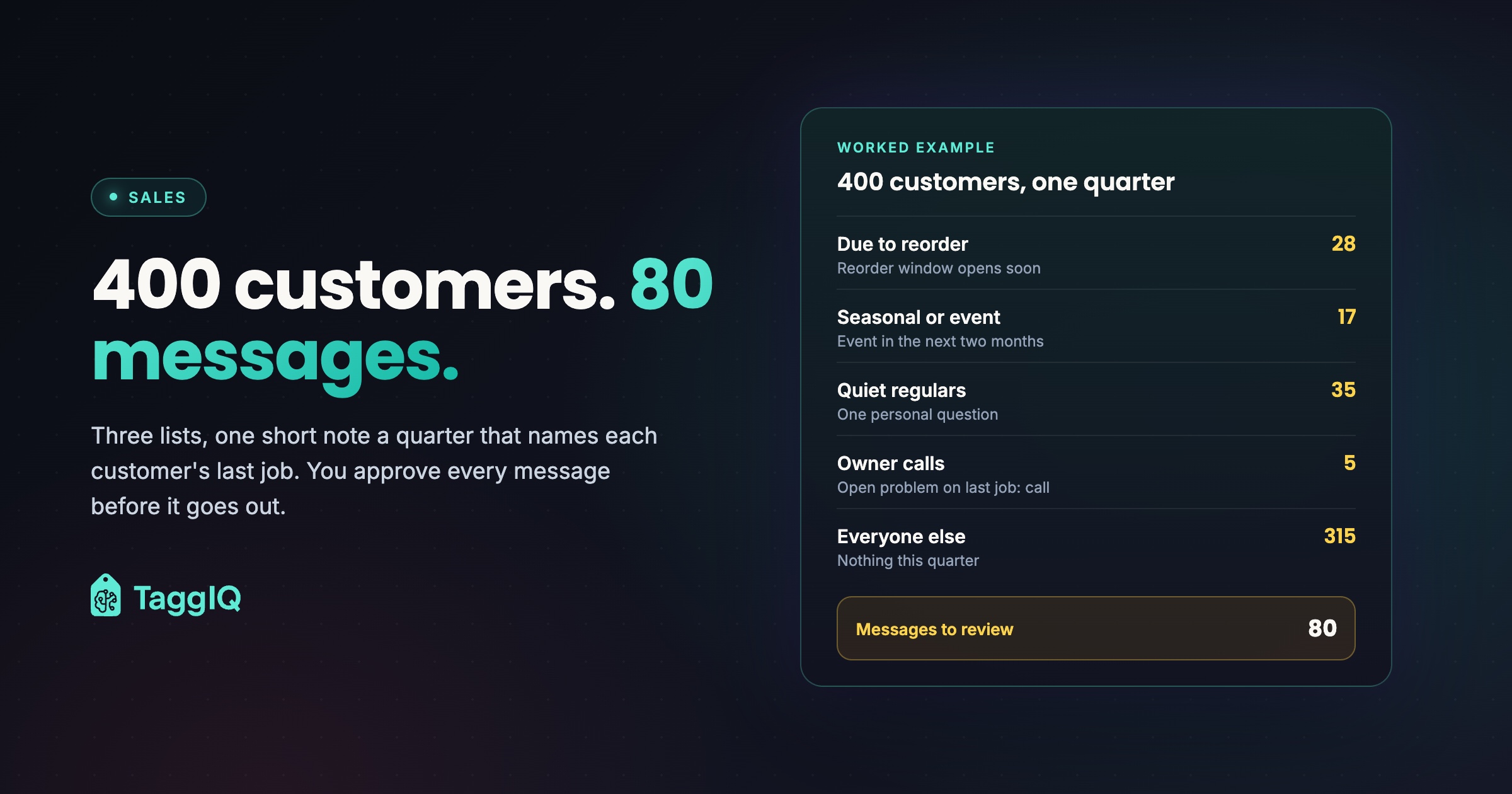
A shop has 400 customers who have ordered in the last three years. At the start of the quarter, 5 have an unresolved problem on their last job, so the owner calls them. 28 are due to reorder during the quarter, 17 have a seasonal event in the next 2 to 3 months, and 35 are quiet regulars. That makes 80 messages, and the other 315 customers hear nothing this quarter. Say each draft takes about 40 seconds to check. 80 × 40 = 3,200 seconds, or about 53 minutes. Allow twice that the first time. These figures are illustrative.
Three message templates
Keep each to four or five sentences with a single next step.
Template 1: Due to reorder
Subject: Your [product] from [month]
Hi [first name], we printed your [quantity] [product] on [last order date]. Going by when you last ordered, you’ll be running low around [expected date]. Do you want the same again, or has anything changed, such as a new title, phone number or logo? [Suggestion] Reply “same again” and we’ll send a proof this week.
[Sender name]
This is a promotional message from [Shop name]. [Street address, city, state, ZIP]. Reply “unsubscribe” to stop these emails.
Template 2: Seasonal or event
Subject: [Event] again this year?
Hi [first name], last [month] we made [product] for [event]. If it’s on again, we still have last year’s files, so a reorder only needs a quick proof check. Approve by [date] and we can schedule it for [week], well ahead of the day. [Suggestion] Shall we send last year’s proof with this year’s date on it?
[Sender name]
This is a promotional message from [Shop name]. [Street address, city, state, ZIP]. Reply “unsubscribe” to stop these emails.
Delete the files sentence if you no longer have last year’s artwork.
Template 3: Quiet regulars
Subject: About your [product] from [month year]
Hi [first name], it’s been a while since we made your [product]. Was there anything about that job we could have done better? If your needs have changed, tell us what you’re working on. [Suggestion]
[Sender name]
This is a promotional message from [Shop name]. [Street address, city, state, ZIP]. Reply “unsubscribe” to stop these emails.
None of the three includes a discount. If every message comes with an offer, your good repeat customers learn to wait for one. “Same again” means the same job, not the same price: show the current price on the proof, and say so in your reply if it has changed.
Email or a named postcard
A postcard to a named past customer showing the job you made for them shows off your print in a way an email can’t. For the seasonal list, send the postcard instead of the Template 2 email, so it still counts as that customer’s one message this quarter.
USPS Every Door Direct Mail (EDDM) delivers to every address on the carrier routes you choose, addressed to “Postal Customer”. It works from routes rather than a named customer list, so it can’t reach your seasonal customers by name.
Worked example
The 17 seasonal customers each get a postcard showing last year’s job. Assume about $0.35 per card in materials and press time and about $0.65 in postcard postage (check the current USPS rate): about $1.00 a card, or $17 for all 17. Each card shows a different job, so count layout too. With one master template that has a photo slot and variable text, allow about 5 minutes a card: 17 × 5 = 85 minutes, about $85 at a $60 hourly shop rate. That brings the total to about $102, plus the one-off time to build the template. USPS lists EDDM Retail Marketing Mail Flats at $0.26 per piece, and EDDM Retail requires between 200 and 5,000 pieces per day per ZIP Code. A 200-piece drop costs $52 in postage before printing. The postcard, layout and shop-rate figures are illustrative. Only the EDDM rate comes from USPS.
Let AI draft, then approve every message
Export each segment as a spreadsheet, one row per customer, and let a plain mail merge fill in the facts: name, product, quantity and date. Use AI once, before the merge, to polish the template wording and to fill a “suggestion” column with one tailored line per customer. Don’t run merged messages back through AI, because it can change the names, quantities and dates the merge kept exact. Before you upload records to a general-purpose AI tool, send only the columns the suggestion needs (row number, product, quantity, date), not names or contact details, and check that the tool’s settings, your permissions and your privacy obligations allow it.
Worked example
Illustrative suggestion lines. Template 1, for a 250-card run: “If you get through cards faster than expected, we can quote 500 alongside 250 so you can compare.” Template 3, for a past uniform order: “Has your team grown since your last uniform order, or is the same quantity still right?” A prompt pattern that keeps the AI on track: “For each row, write one sentence suggesting a relevant next job based on the product, quantity and date. Do not mention prices, discounts, deadlines or offers.”
Before you approve each draft, check:
- The name and company match the record.
- The job it mentions is real: product, quantity and date match the actual order.
- There is no price, discount, deadline or offer you didn’t put there yourself.
- Anything it promises about artwork on file, what you can produce or when matches this customer’s records.
- It sounds like your shop.
- It carries the full footer from its template.
Before you send promotional email
All three templates carry the full footer: the promotional notice, your street address and the unsubscribe line. If you send from the US, check that footer against the FTC’s CAN-SPAM compliance guide. The footer is a starting point, not a compliance check. This is general, US-focused guidance, not legal advice, so check your own obligations with a qualified advisor before your first send.
A rhythm one person can keep
Once a quarter, block one morning. Pull the three lists, including everyone due to reorder at any point in the coming quarter. Remove everyone on your do-not-contact list, set aside anyone with an open problem, generate the drafts and review them in one sitting. Send the seasonal and quiet-regular notes, and schedule each reorder reminder to go out 3 to 4 weeks before that customer’s expected date. Send straight away to anyone due within the next 4 weeks. Add any opt-out to the do-not-contact list the same day, and cancel any scheduled reminder for that customer, or for anyone who reorders or raises a problem before it goes out. Within 30 days of sending, note the replies and orders from each list, and look at them before next quarter’s send.
If your quotes and orders already live in TaggIQ, the AI assistant can help from your real data. It can segment your customer list and propose a re-engagement campaign, look up each customer’s order history, and prepare replies in your shop’s tone. Nothing goes to a customer until you explicitly approve it.
Your next step this week: build only the “due to reorder” list for the next four weeks, fill in Template 1 for the first ten names, run the approval checklist and send them.
See how TaggIQ AI drafts See how TaggIQ's AI assistant drafts customer messages that wait for your approval.
Frequently asked questions
What if my order history is too messy to segment?
Start with the "due to reorder" list only, built from the last 12 months of invoices, because those dates are the easiest to find. Add the other two groups next quarter, once you are recording what each order was for.
What do I do with customers who don't reply?
Treat no reply as this quarter's answer and don't chase. If a quiet regular doesn't answer your personal note, drop them from the quiet-regulars group, but keep them eligible for a reorder or seasonal note when their order history puts them back in one.
Should a reorder reminder ever include an offer?
Only when you have a real reason, such as a price change coming or a better-value quantity break, and only in that one message, so the offer still means something.

Emma
Emma writes for TaggIQ about practical AI and automation for print, promo, sign and embroidery businesses: AI assistants and agents, quoting and follow-up workflows, customer experience and keeping people in charge of the decisions that matter.